
How to Update Gemini CLI Safely (Latest, Preview & Nightly Guide)
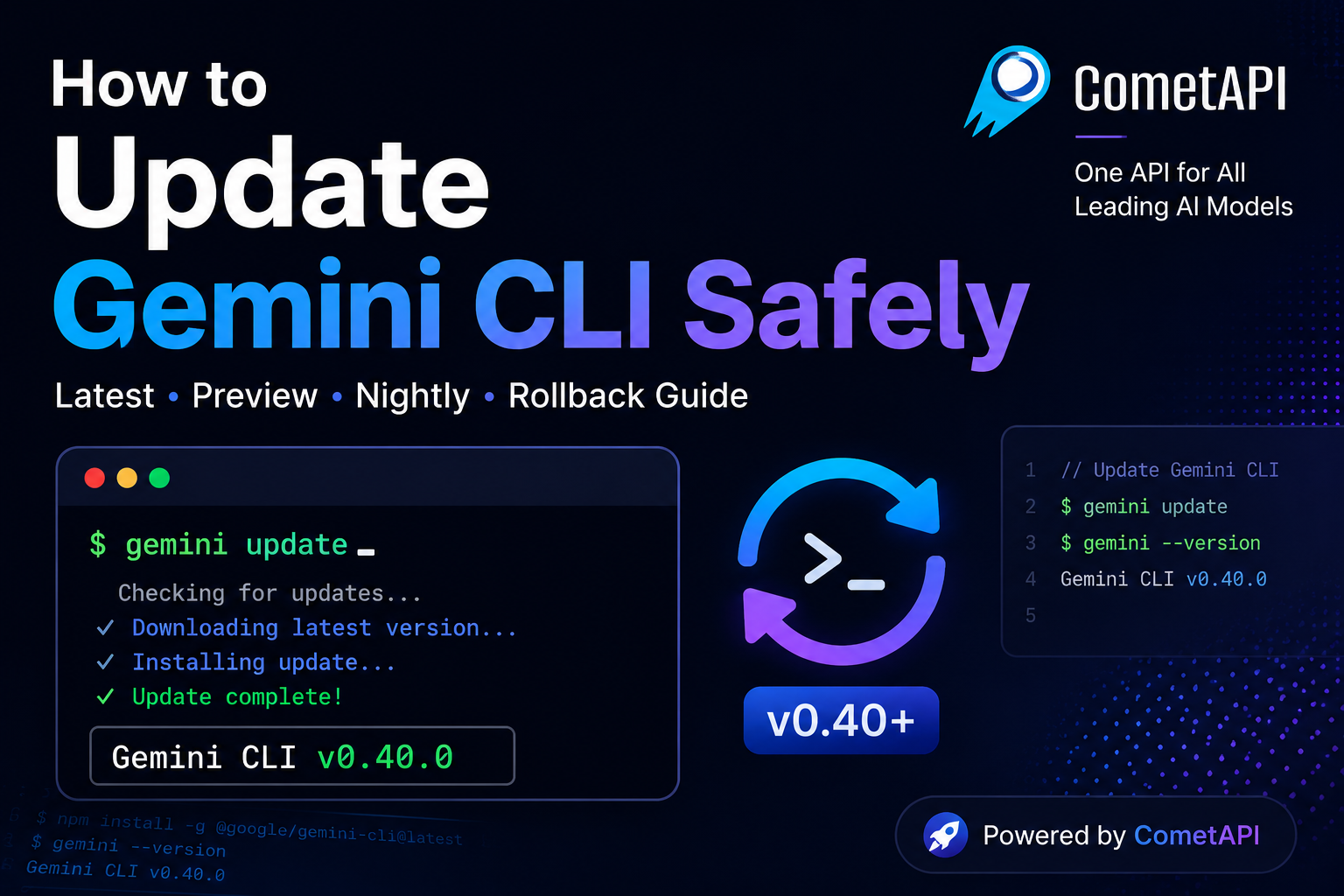
If you're using Gemini CLI regularly, keeping it updated is important. New releases often include bug fixes, authentication improvements, model updates, and new features.
In this guide, you'll learn:
How to check your current Gemini CLI version
How to update to the latest release
How to install Preview and Nightly builds
How to roll back to a previous version
Common update issues and how to fix them
TL;DR
Update Gemini CLI:
gemini update
Or install the latest version directly:
npm install -g @google/gemini-cli@latest
Verify the update:
gemini --version
If something breaks after updating:
npm install -g @google/gemini-cli@0.39.0
Check Your Current Gemini CLI Version
Before updating, check which version you're currently running:
gemini --version
You'll see output similar to:
Gemini CLI v0.40.0
If you're already on the latest version, no further action is required.
Update Gemini CLI to the Latest Version
The easiest way to update Gemini CLI is:
gemini update
Once completed, verify the update:
gemini --version
This ensures you're running the newest stable release.
Install the Latest Version via npm
If the built-in update command isn't available, install the latest version manually:
npm install -g @google/gemini-cli@latest
After installation:
gemini --version
Install Preview Releases
Preview releases allow you to test upcoming features before they reach the stable channel.
npm install -g @google/gemini-cli@preview
Preview versions may contain experimental functionality and occasional bugs.
Install Nightly Builds
Nightly builds include the newest code changes and are intended for testing purposes.
npm install -g @google/gemini-cli@nightly
Use Nightly builds only if you want early access to features or are actively providing feedback.
How to Roll Back Gemini CLI
Sometimes a new version introduces unexpected issues.
To return to a previous version:
npm install -g @google/gemini-cli@0.39.0
Replace the version number with whichever release you need.
Verify:
gemini --version
Rollback support is particularly useful when testing Preview or Nightly releases.
Common Update Errors
gemini: command not found
Check whether Gemini CLI is installed globally:
npm list -g @google/gemini-cli
If it's missing, reinstall:
npm install -g @google/gemini-cli@latest
npm ERR! EACCES
Permission errors typically indicate a global npm configuration issue.
Instead of using sudo, consider:
Using nvm
Reinstalling Node.js correctly
Adjusting npm permissions
Unsupported Node Version
Check your current Node.js version:
node -v
If your Node version is outdated, upgrade Node.js before updating Gemini CLI.
Recommended Update Strategy
For most developers:
Use Latest for production workflows
Use Preview when testing upcoming features
Use Nightly only for experimentation
A stable version should remain your primary environment, while Preview and Nightly builds are better suited for testing.
Conclusion
Keeping Gemini CLI updated ensures access to the latest improvements, security updates, and model capabilities.
For most users, running:
gemini update
or
npm install -g @google/gemini-cli@latest
is all that's needed to stay current.
If issues arise, rolling back to a previous version is straightforward and can help maintain a stable development workflow.
If you're working with multiple AI models beyond Gemini, such as Claude, GPT, DeepSeek, or Grok, you may also want a unified API layer instead of managing separate providers individually. Platforms like CometAPI provide access to multiple AI models through a single API, which can simplify development and testing workflows.
You can learn more here:


